
Appearance
Setting Up Visitor Parking (One-Time Registration)
Before booking a visitor parking spot, complete a one-time registration for your monthly visitor parking allowance. This registration is not required to book parking every time, rather it is one-time only.
Steps
1. Sign Up or Log In
- Open the TerraFuse app and sign in.
- If you’re new, follow the sign-up steps.
2. Apply for Visitor Parking Allowance
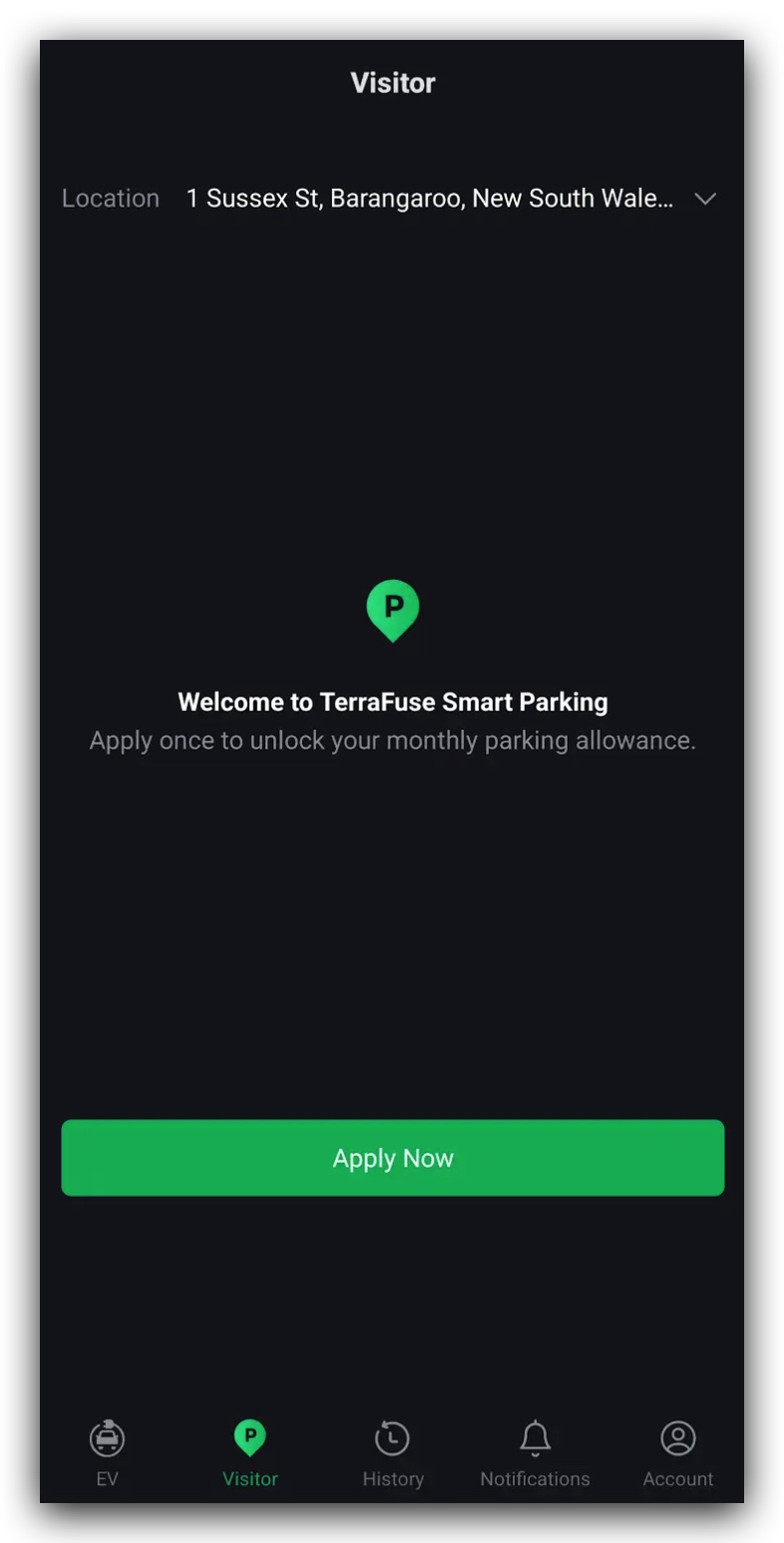
- Navigate to the Visitor Parking section in the app.
- Click on the Apply button to submit your request as shown in Figure 2.1.1.
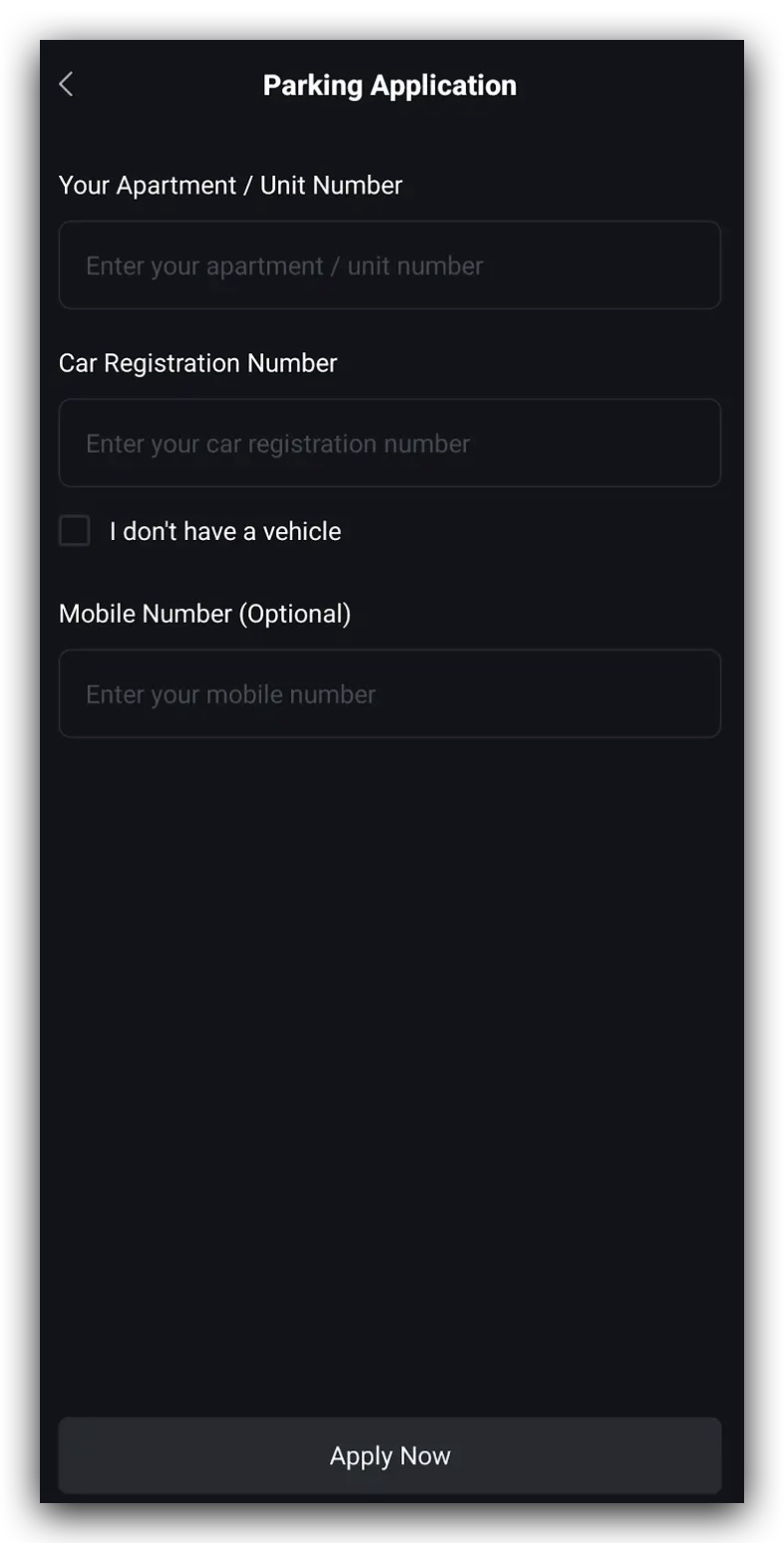
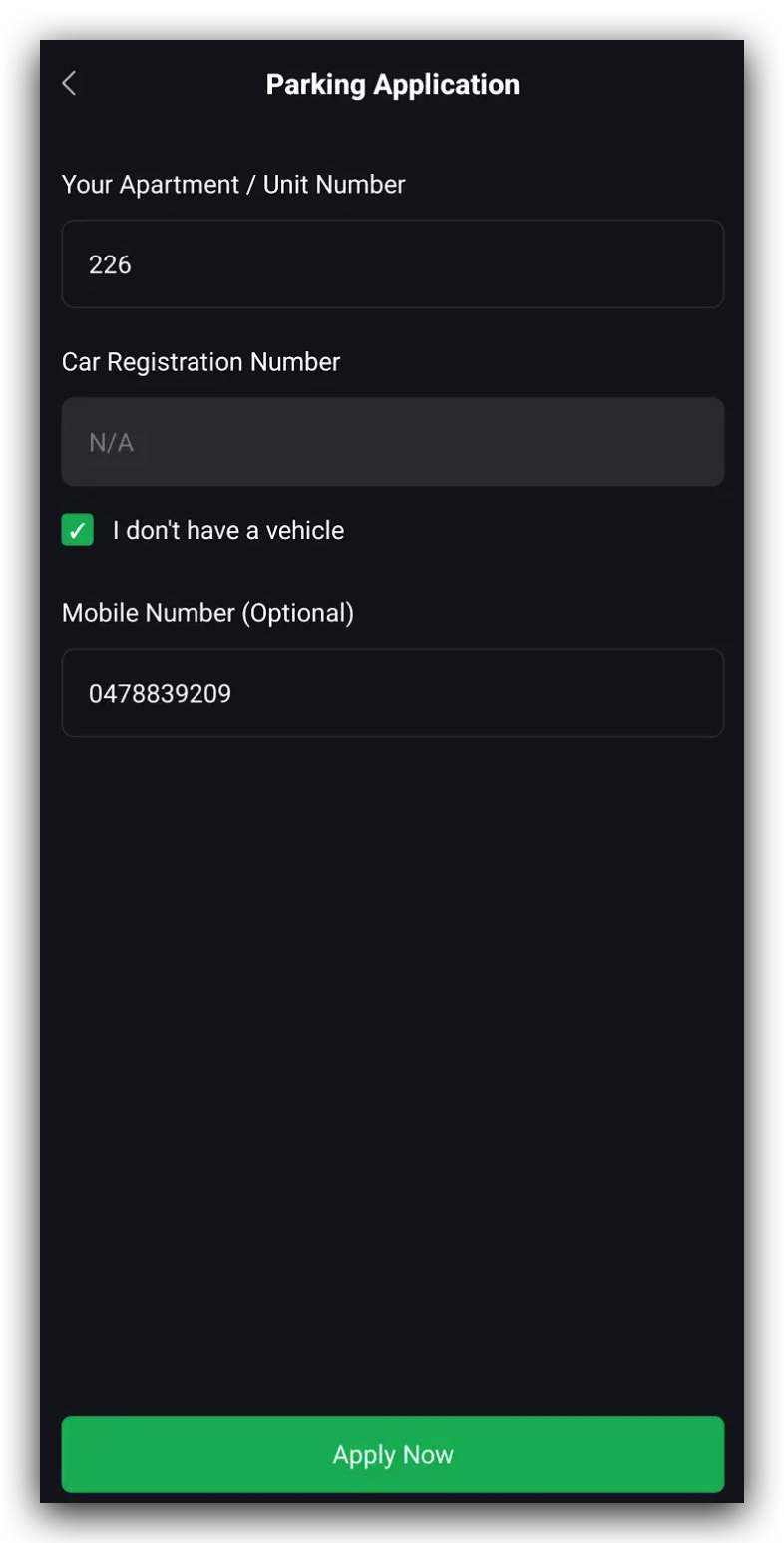
- Fill up your Unit Number and Car Registration Number as shown in Figure 2.1.2. If you do not own a vehicle, you can simply click on the checkbox for "I don't have a vehicle". Optionally, you can add your phone number.
- Your application will be sent to the building manager for approval.
- Once approved by the building manager, you’ll be able to start booking visitor parking spots.
3. Approval by Building Manager
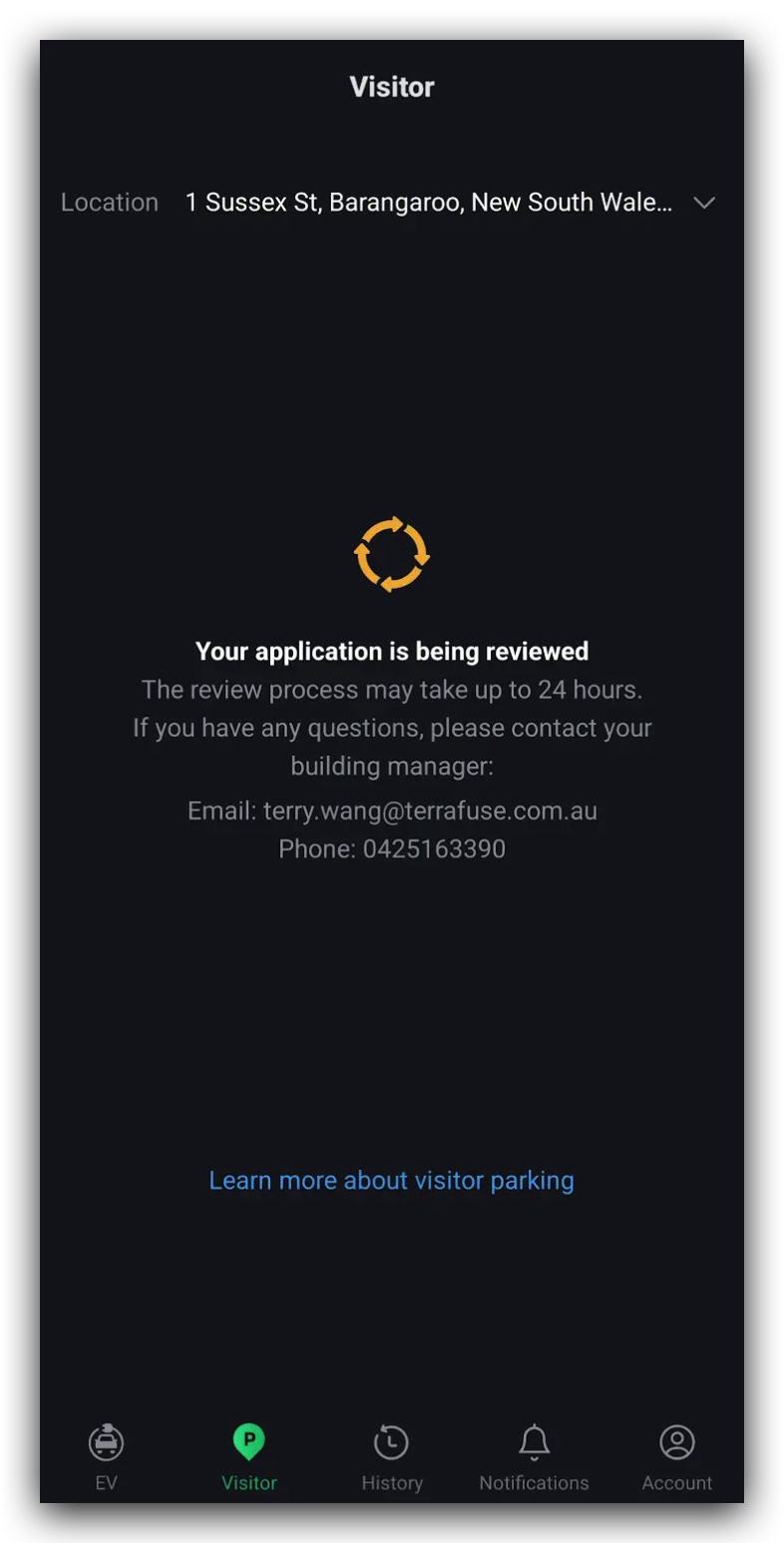
- Once you fill up and submit the application, it will be sent to the building manager for approval, as shown in Figure 2.1.4.
- Your request will be reviewed as shown in Figure 2.1.5.
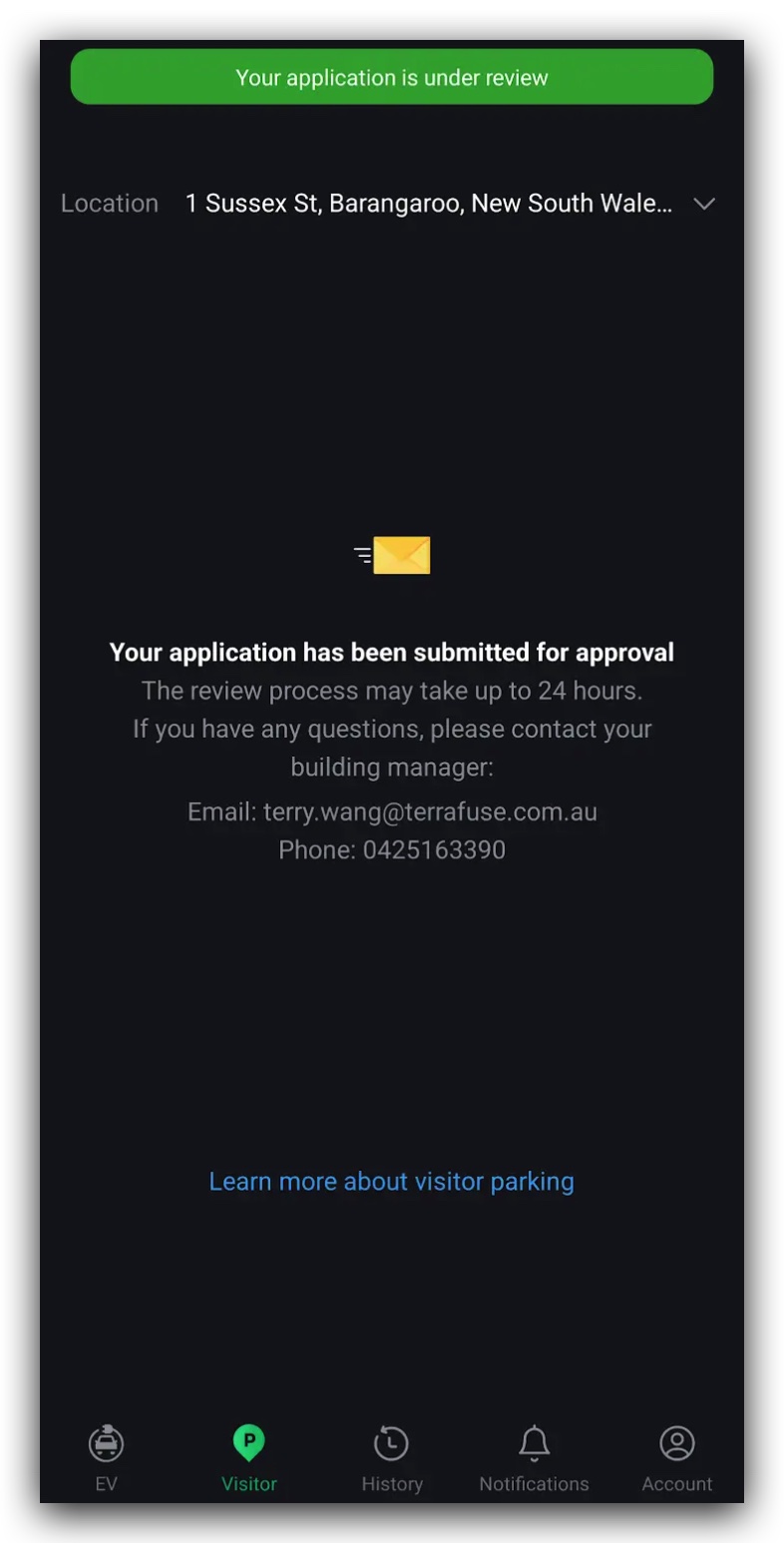
- Once approved, you can immediately start booking parking spots.
- You only need to do this process once.