
Appearance
Booking a Charging Session in Advance
With the TerraFuse App, you can easily reserve a charging spot for your electric vehicle (EV) before you arrive — so you never have to wait or guess if a charger will be free.
Step 1: Open the Charging Page
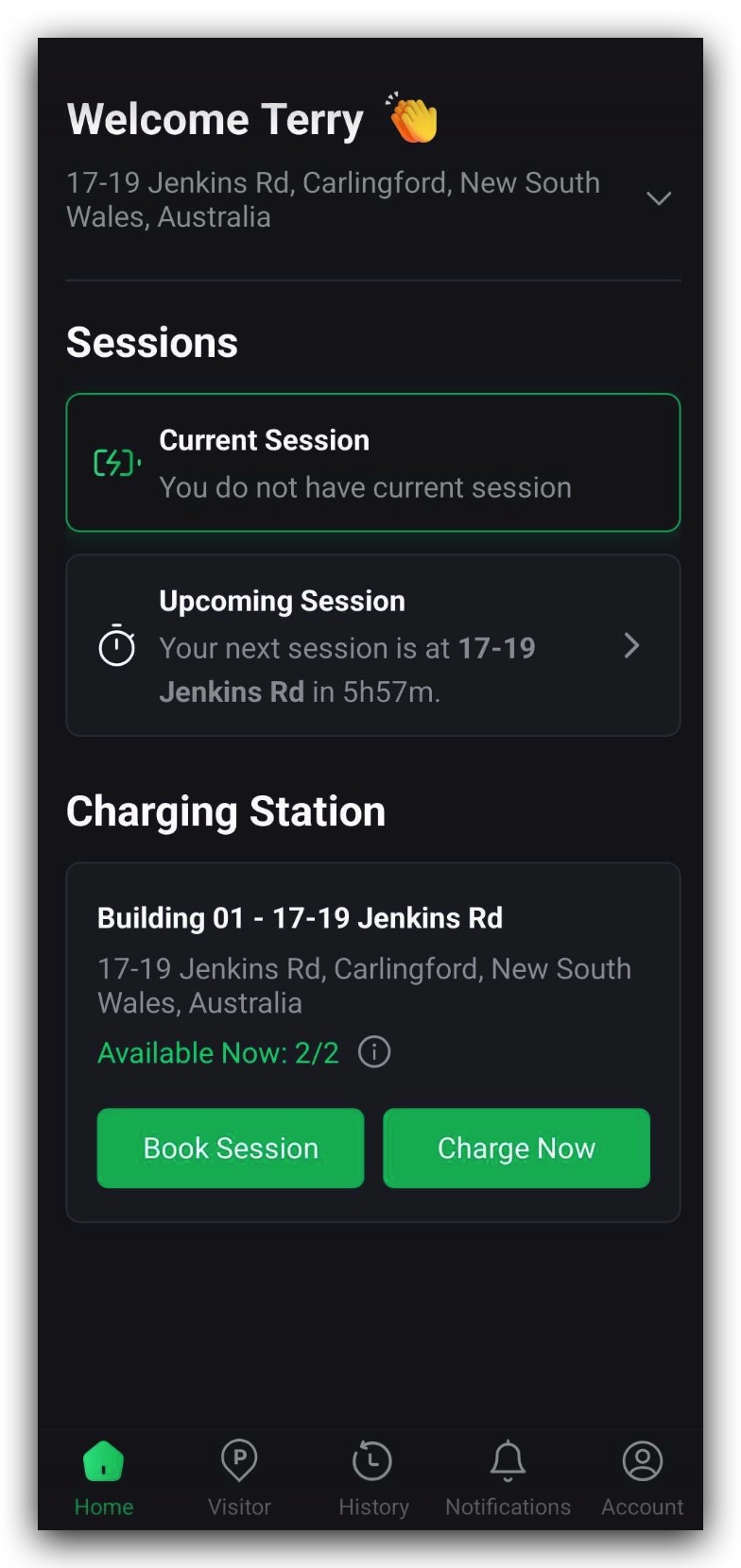
Once you’ve registered and set up your details in the app, go to the Home page from the main menu. It will appear as Figure 1.2.1.
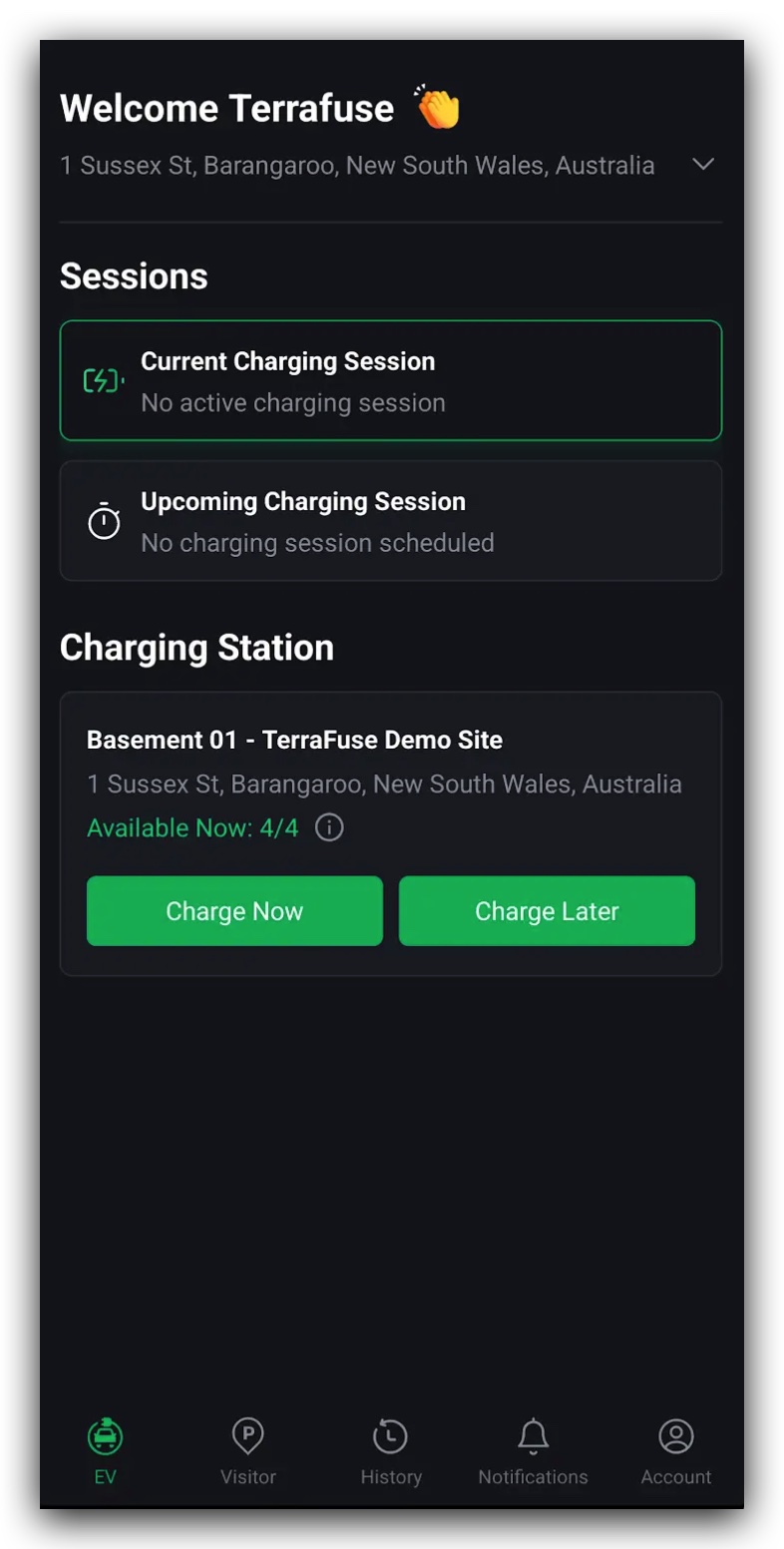
At the top of the page, you’ll see your current location. Tap the small arrow (▼) to view the full address.
On this page, you’ll also find:
- Sessions section – Shows your current charging session (if one is running) and any upcoming bookings.
- Charging stations section – Displays the number of connectors at your location and how many are available.
TIP
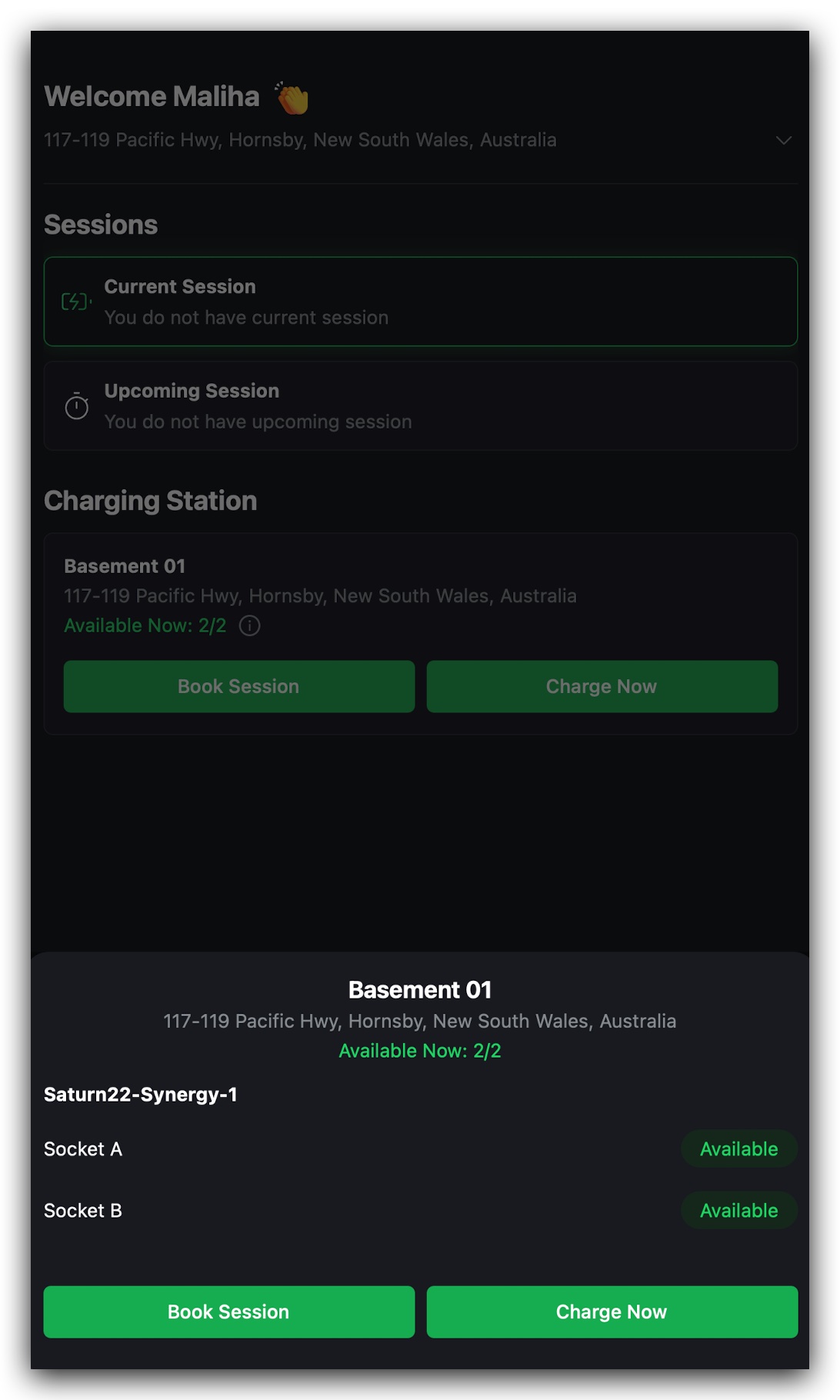
Tap the small “i” icon to see exactly which sockets are free and which are in use, shown in Figure 1.2.2.
Step 2: Start a New Booking
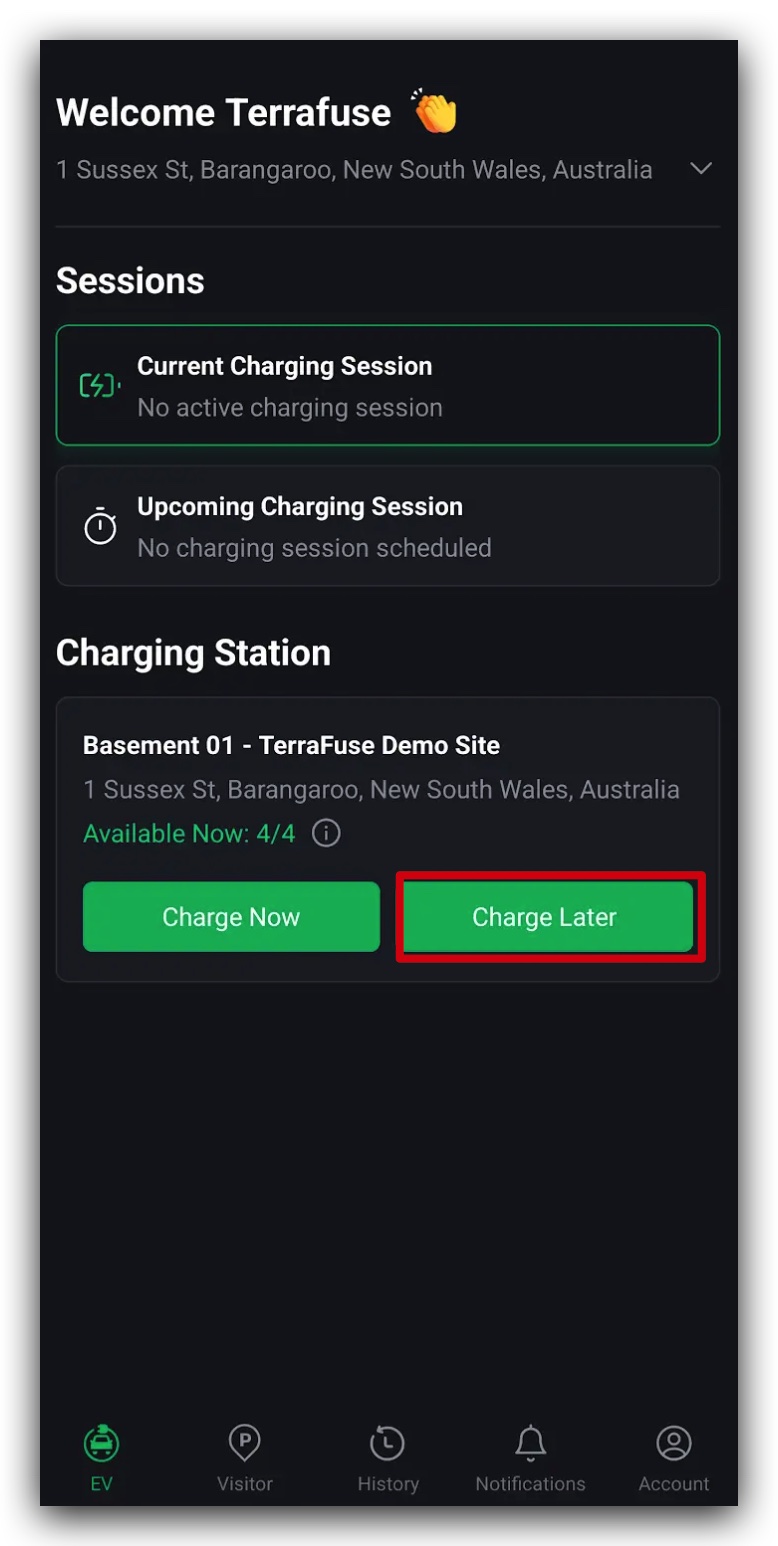
To reserve a future session, tap "Charge Later", as shown in Figure 1.2.3
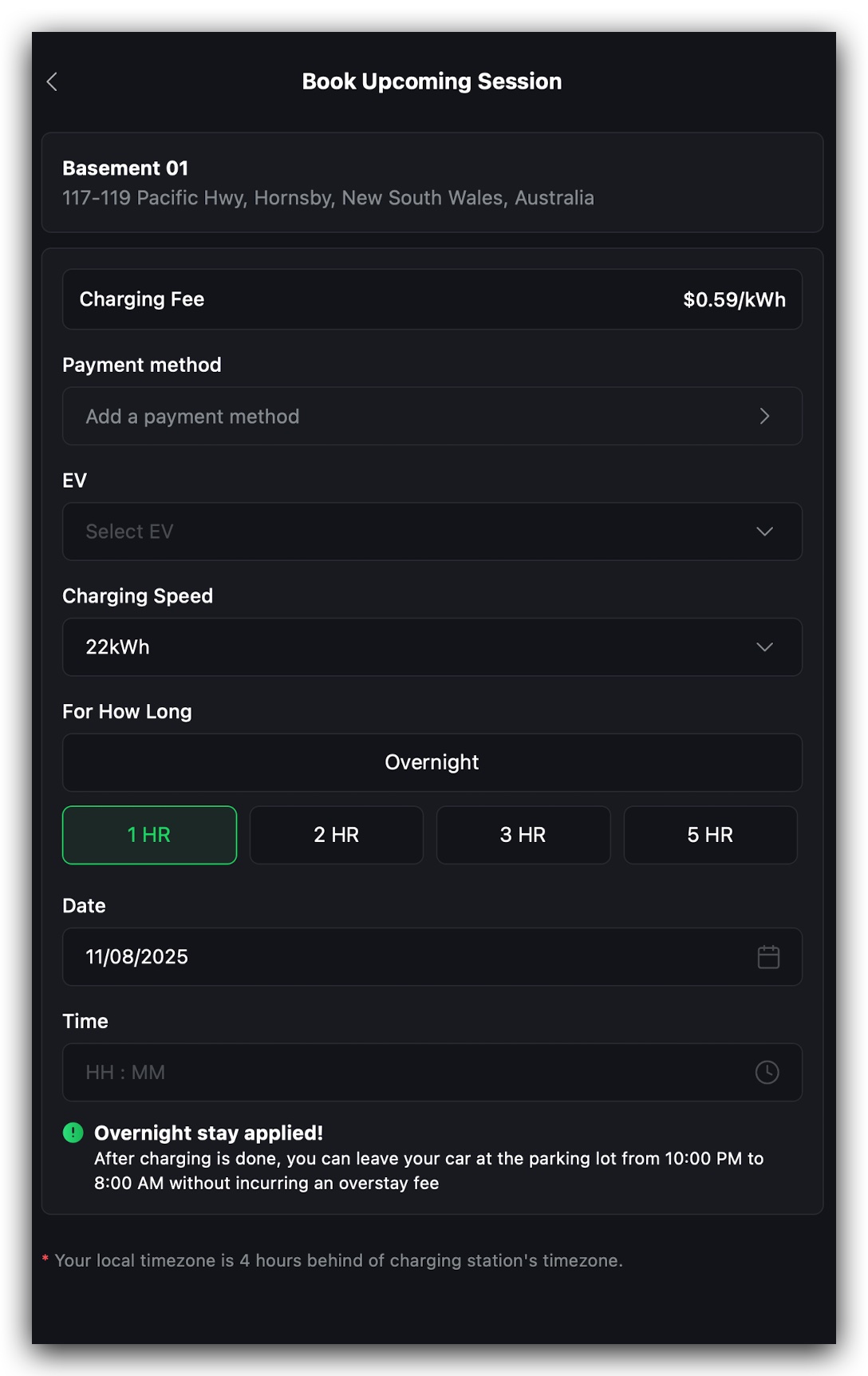
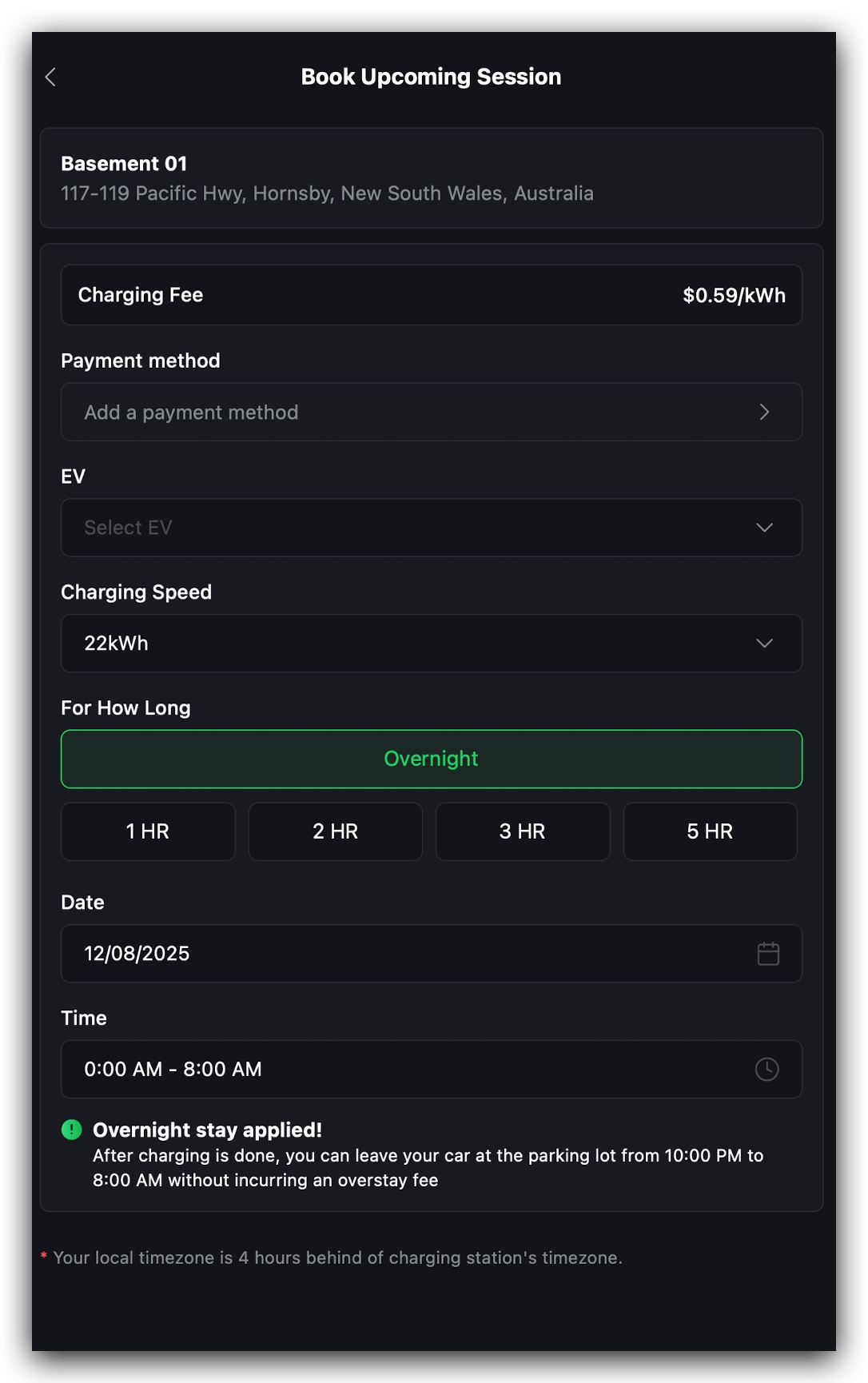
A booking form will appear, shown in Figure 1.2.4.
Booking form details:
- Payment Method – Your default payment will be selected automatically, but you can change it if needed.
- Your EV – Select your vehicle.
If you haven’t added one yet, tap "Add EV" and enter your car’s make and model. - Charging Speed – Choose the charging speed that suits you.
- Duration – Choose how long you want to charge (from 1 to 5 hours, or overnight).
Overnight Option Rules
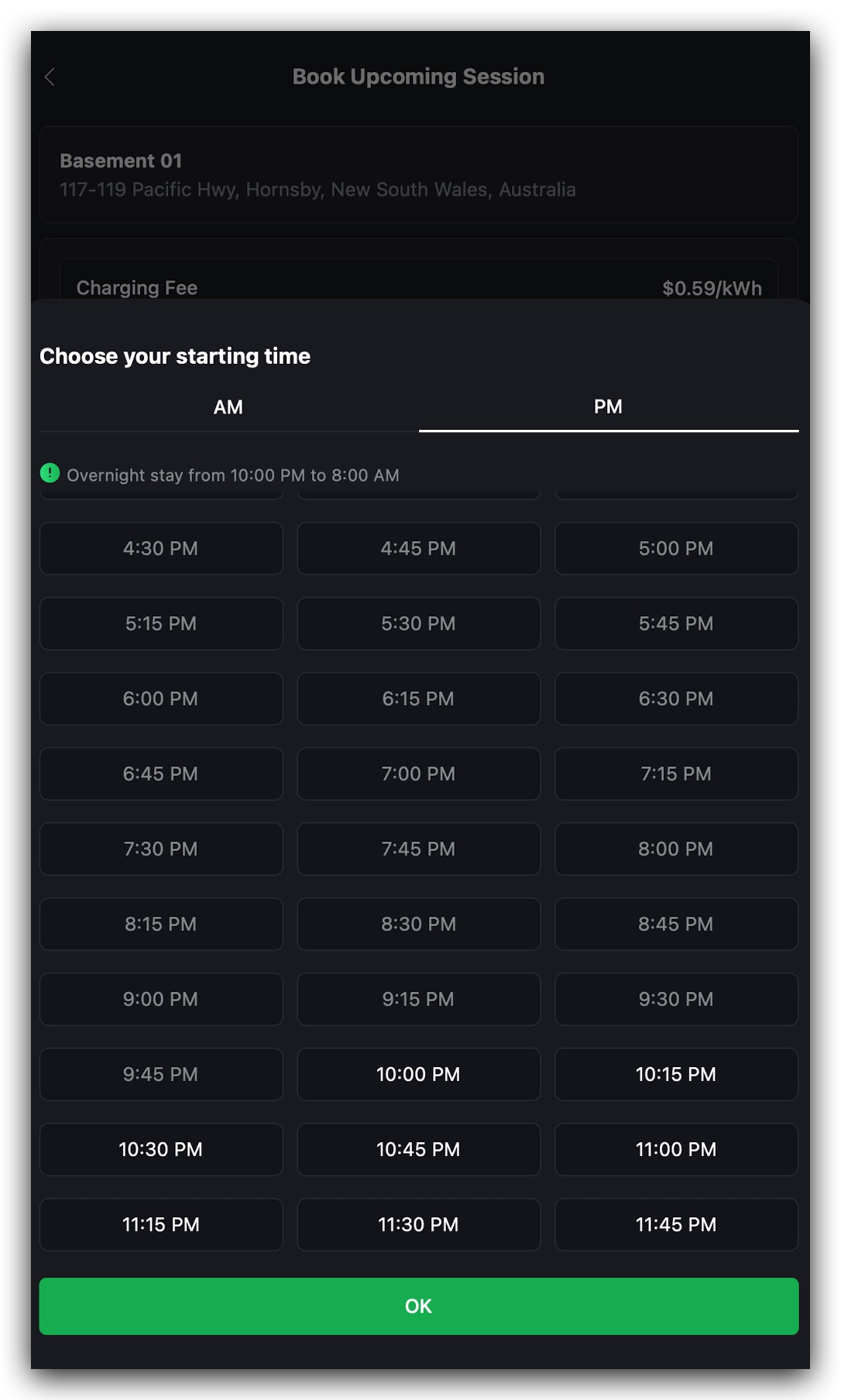
- You can only select overnight charging for sessions starting at 10:00 PM or later.
- After charging finishes, you may leave your car in place until 8:00 AM without overstay fees.
- If you pick overnight, you cannot set a start time before 10:00 PM, shown in Figure 1.2.6.
Step 3: Confirm Your Booking
Once you’ve filled in the form, tap "Confirm".
Your booking will now appear under Upcoming Sessions on the Charging page, shown in Figure 1.2.7.
Booking Confirmed ✅
Your charging session is now booked!
You can relax until it’s time to plug in—no action is needed right away.
The TerraFuse App will send you a notification 10 minutes before your session begins so you can get ready.
Want to Edit or Cancel Your Booking?
If you need to make changes to your charging session, you’ll first need to cancel your current booking.
Once cancelled, you can create a new booking with your updated details.
Important
You will only be billed for the exact amount of energy (kWh) your vehicle consumes.
The cost calculation starts only when your EV is connected and charging.