
Appearance
Strata Dashboard Guide for Building Managers
Purpose of the Dashboards
TerraFuse uses two dashboards to give building managers both a broad view of all their managed properties and the ability to manage each site in detail.
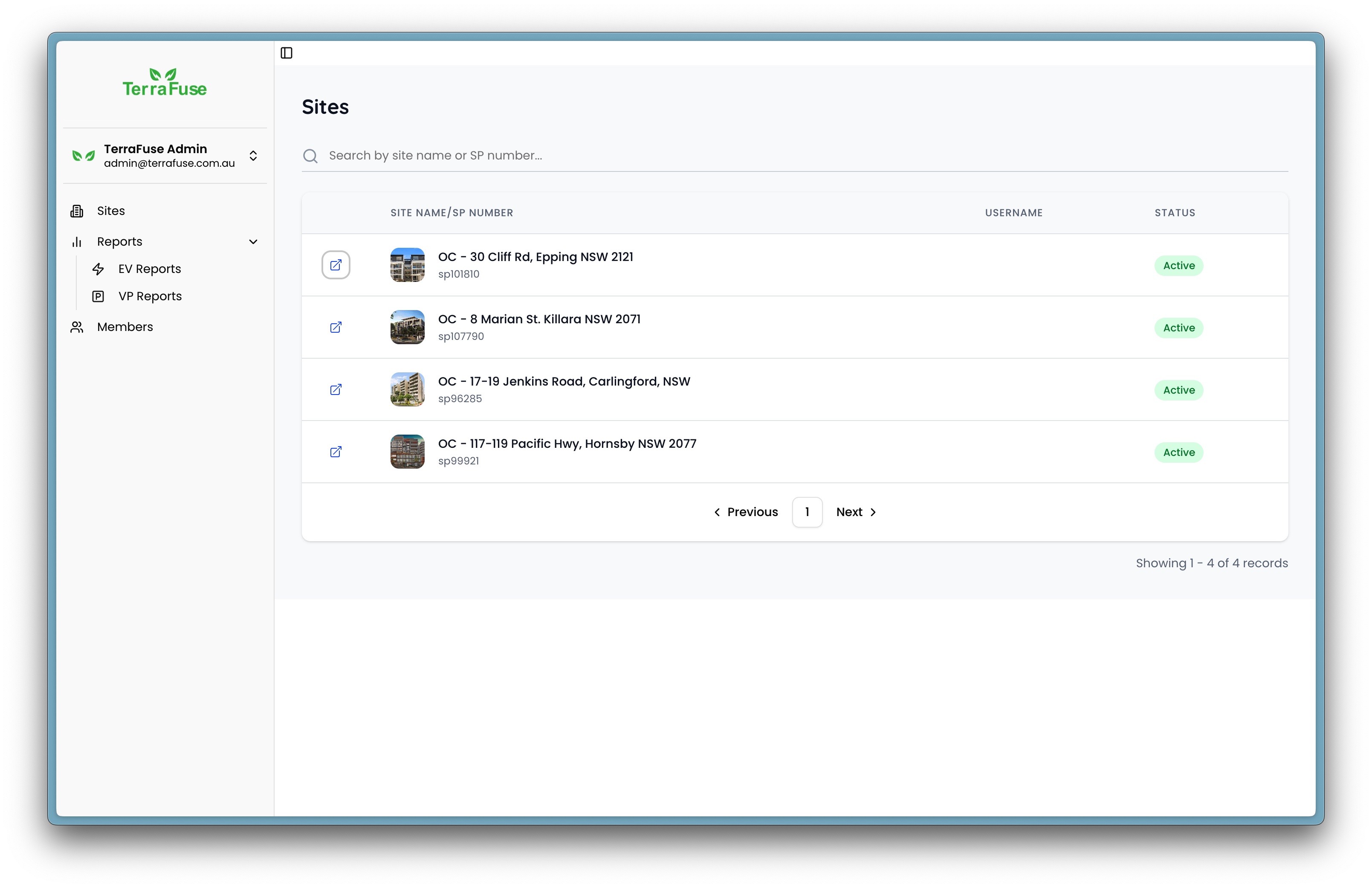
- Strata Dashboard – The starting point for all building managers. After logging in here, you can see every site you manage in one place. From this dashboard, you can quickly select and access the site you need.
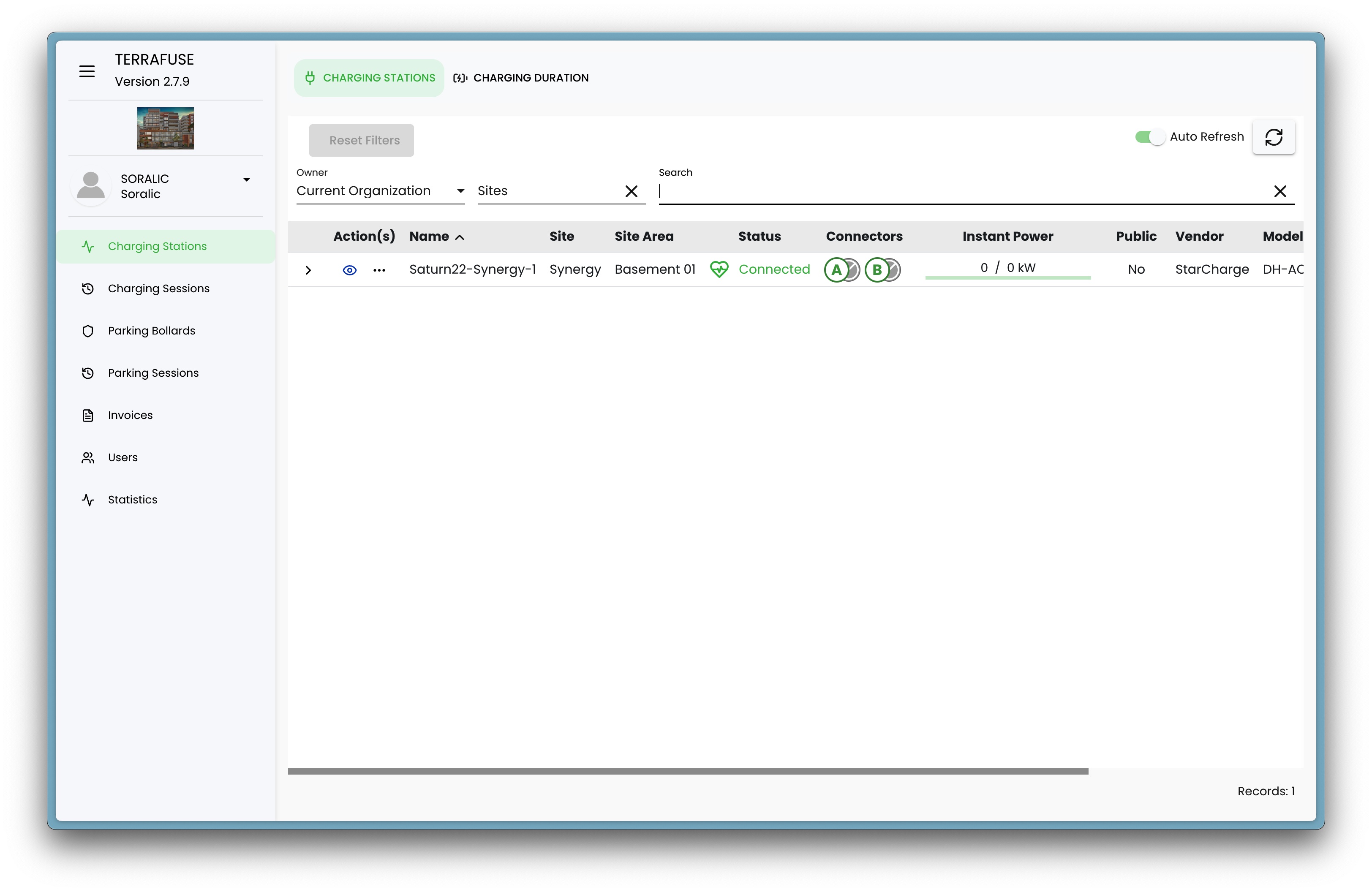
- TerraFuse Dashboard – The dedicated dashboard for an individual property. This is where you carry out all operational tasks for that specific site, such as setting visitor parking allowances, monitoring EV charging sessions, and managing tenant-related settings.
This two-step process—logging into the Strata Dashboard first, then entering the site’s own dashboard—ensures:
- Centralized access – One login gives you visibility of all your sites.
- Site-specific security – Each site has its own credentials, so access is restricted and secure.
- Clear separation of responsibilities – Strata-level oversight stays separate from the operational details of each property.
By keeping these functions separate, managers can work efficiently across multiple buildings without mixing up data or settings between sites.
Understanding the Strata and Site Dashboards
To streamline visitor parking and EV charging management across multiple residential buildings, TerraFuse provides two tiers of administrative access:
Strata Dashboard – A centralized platform where building managers can oversee all the sites they are responsible for (Shown in Figure 3.1.1).
TerraFuse Dashboard – A localized dashboard tailored for individual sites, where specific parking and charging operations are managed (Shown in Figure 3.1.2).
This two-level access system ensures that managers can operate efficiently across multiple properties, while maintaining control over each site’s unique configuration and resident activity.
Accessing the Strata Dashboard
Building managers do not have the ability to self-register for access to the TerraFuse Strata Dashboard. To gain access, they must first request login credentials directly from the TerraFuse team. Once the credentials (username and password) have been provided, the manager can log in at https://strata.dashboard.terrafuse.com.au.
There are two login options as below:
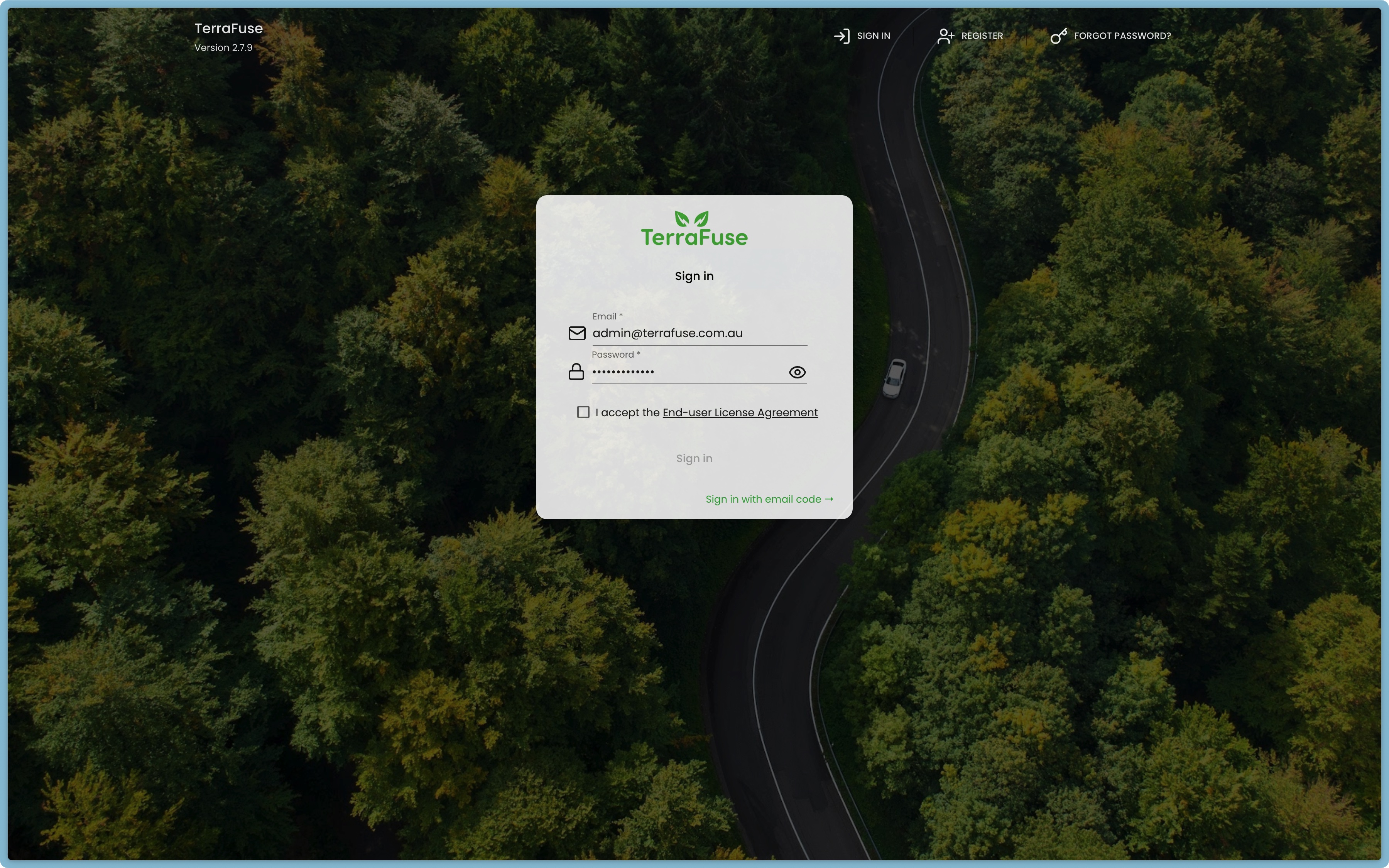
- Password (Figure 3.1.3 ): Standard method to login with your provided credentials.
- Provide the email address inside the Email field, and the password inside the Password field.
- Click on the checkbox for I accept the End-user License Agreement and click on Sign In.
- You will be successfully logged in to the dashboard. Click on the Sign in with Email Code option if you prefer signing in with your password instead.
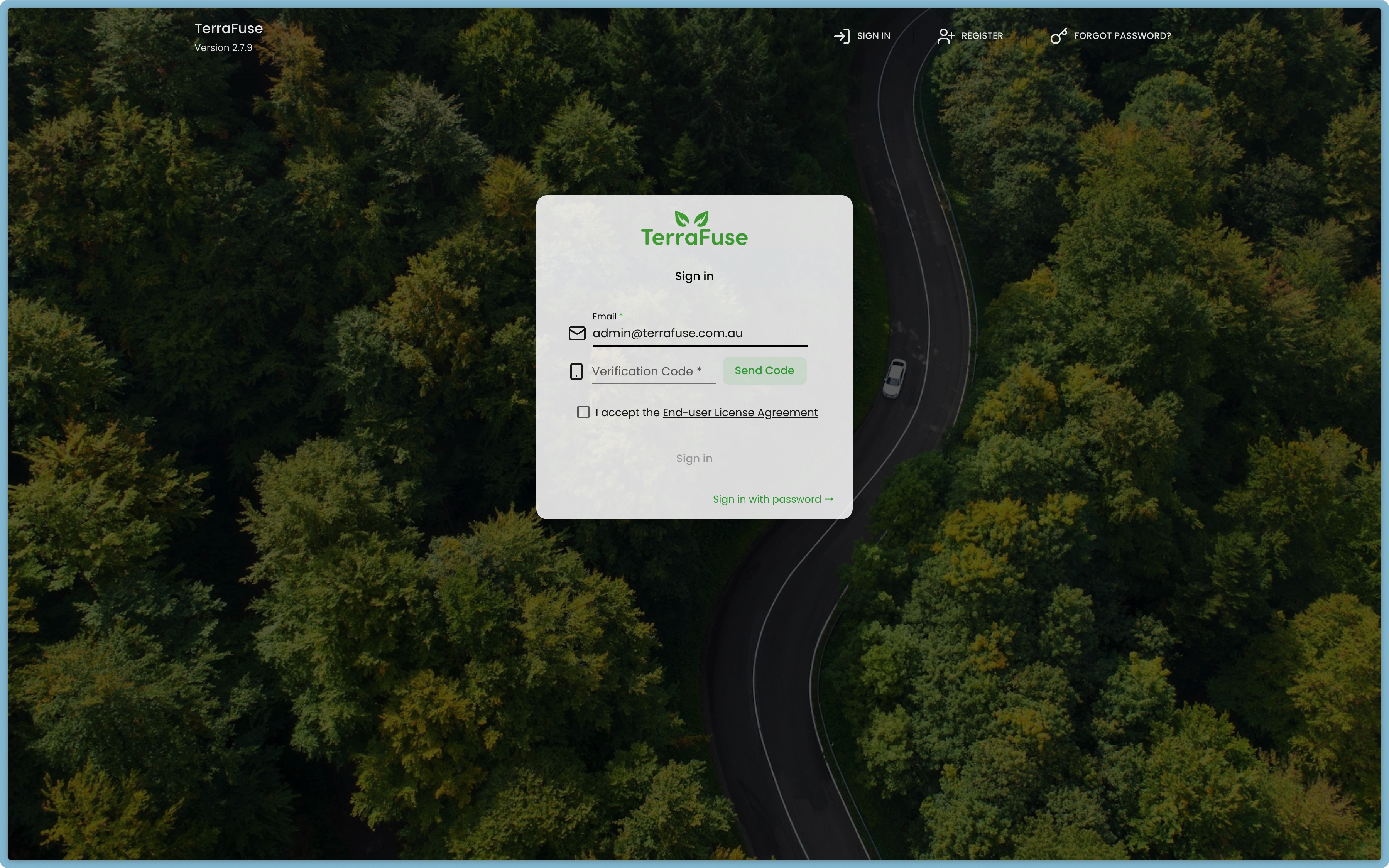
- Verification code (Figure 3.1.4): This method is provided for the registered users who may have forgotten the password for the account, for ease of access to the dashboard.
- Provide the email address inside the Email field. Then click on Send Code.
- If your email is registered as a user, you will receive a 6 digit code in your email.
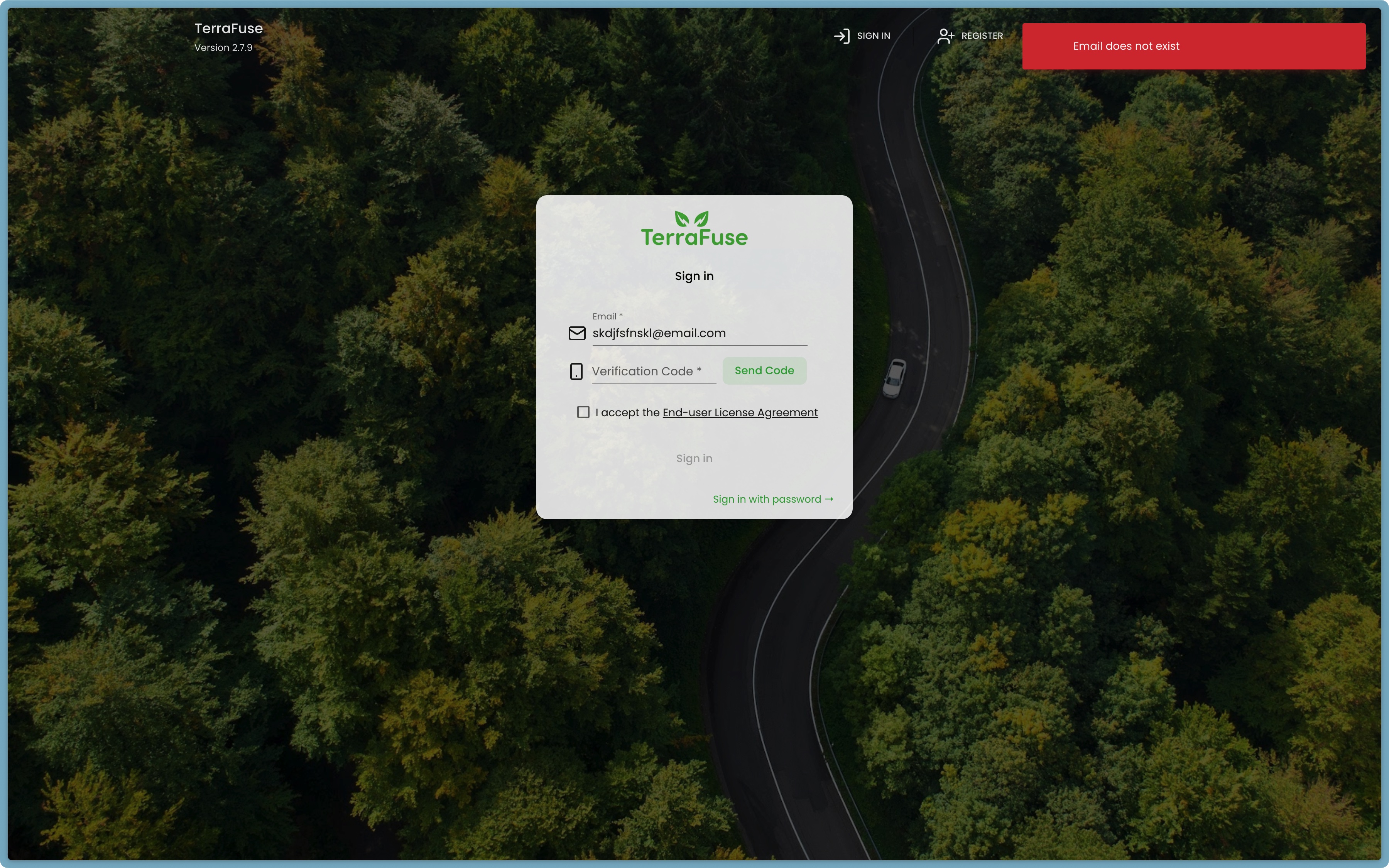
- If email is not registered, you will see an error "Email Does Not Exist" as shown in Figure 3.1.5.
- Input the code inside the Verification Code field.
- Click on the checkbox for I accept the End-user License Agreement and click on Sign In.
- You will be successfully logged in to the dashboard. Click on the Sign in with Password option if you prefer signing in with your password instead.
Navigating to Managed Sites
Upon successful login, building managers will land on the Strata Dashboard homepage. To view the sites under their management:
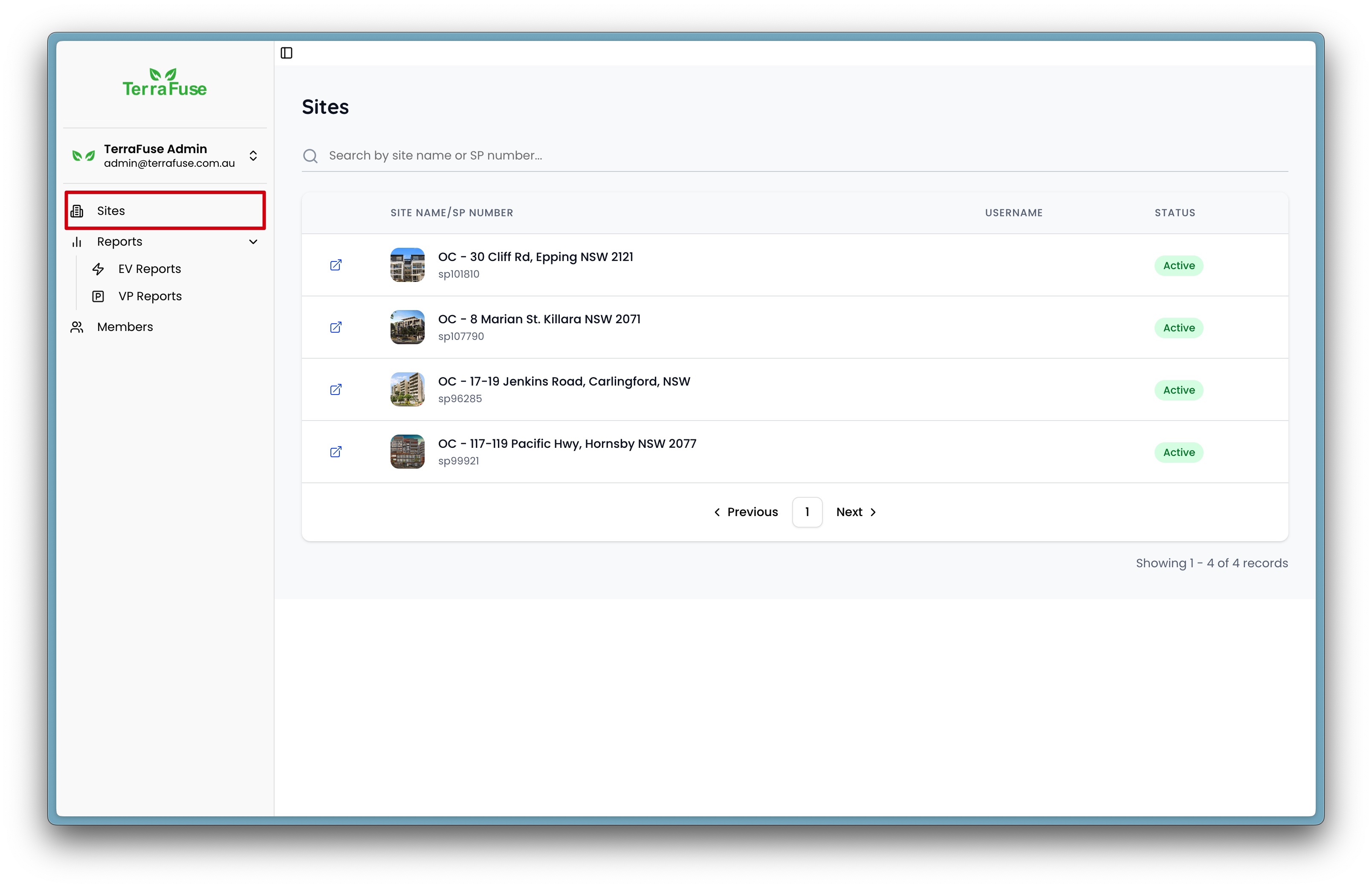
- Navigate to the Sites option from the left-hand side menu, as shown in Figure 3.1.6.
- This page displays an aggregated list of all sites assigned to the building manager’s account.
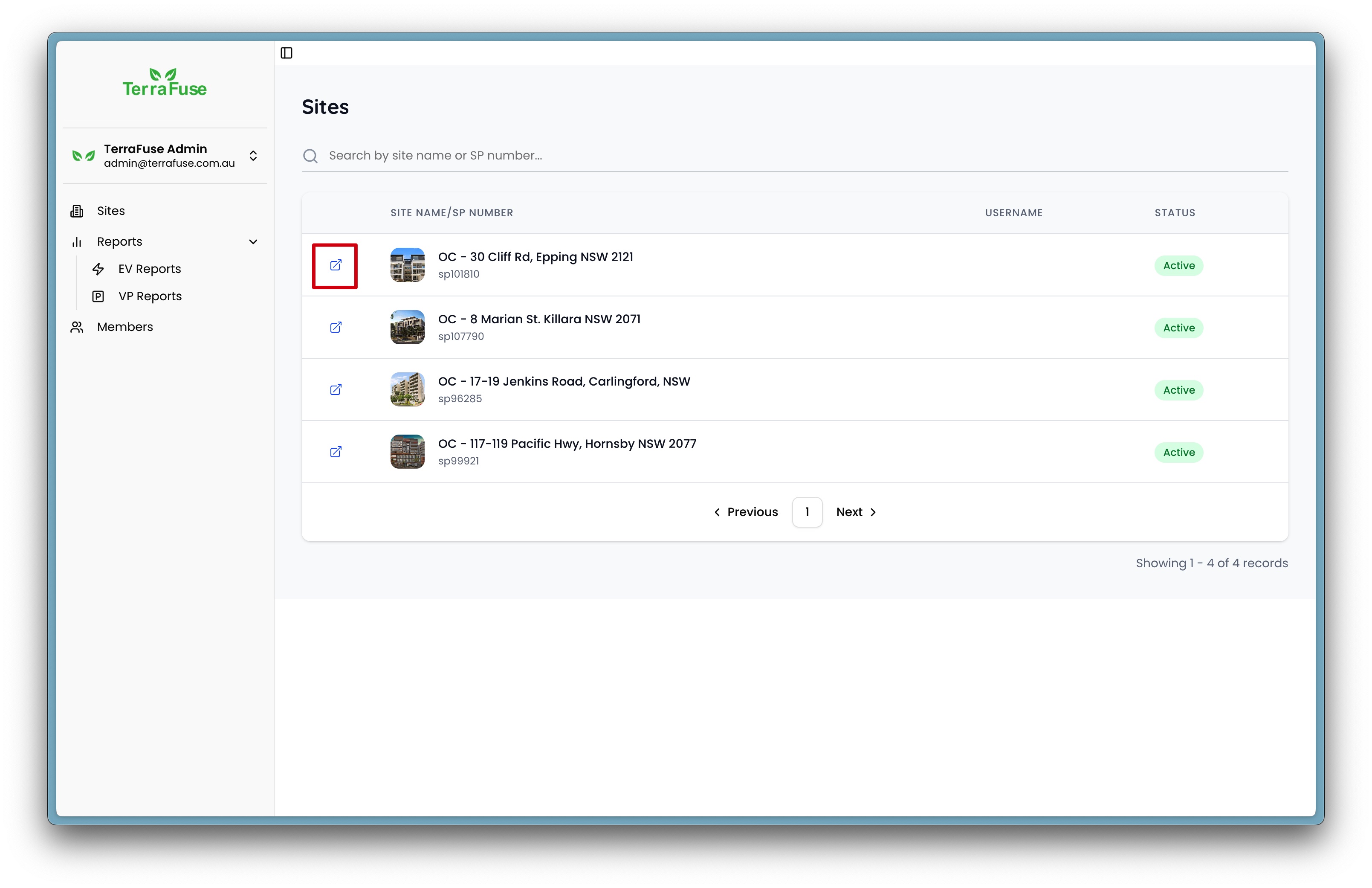
- Each listed site includes a button with an external link icon, as shown in Figure 3.1.7. Clicking this icon will redirect the manager to that site’s dedicated login interface.
Accessing the Site-Specific TerraFuse Dashboard
Once redirected to the selected site’s login page:
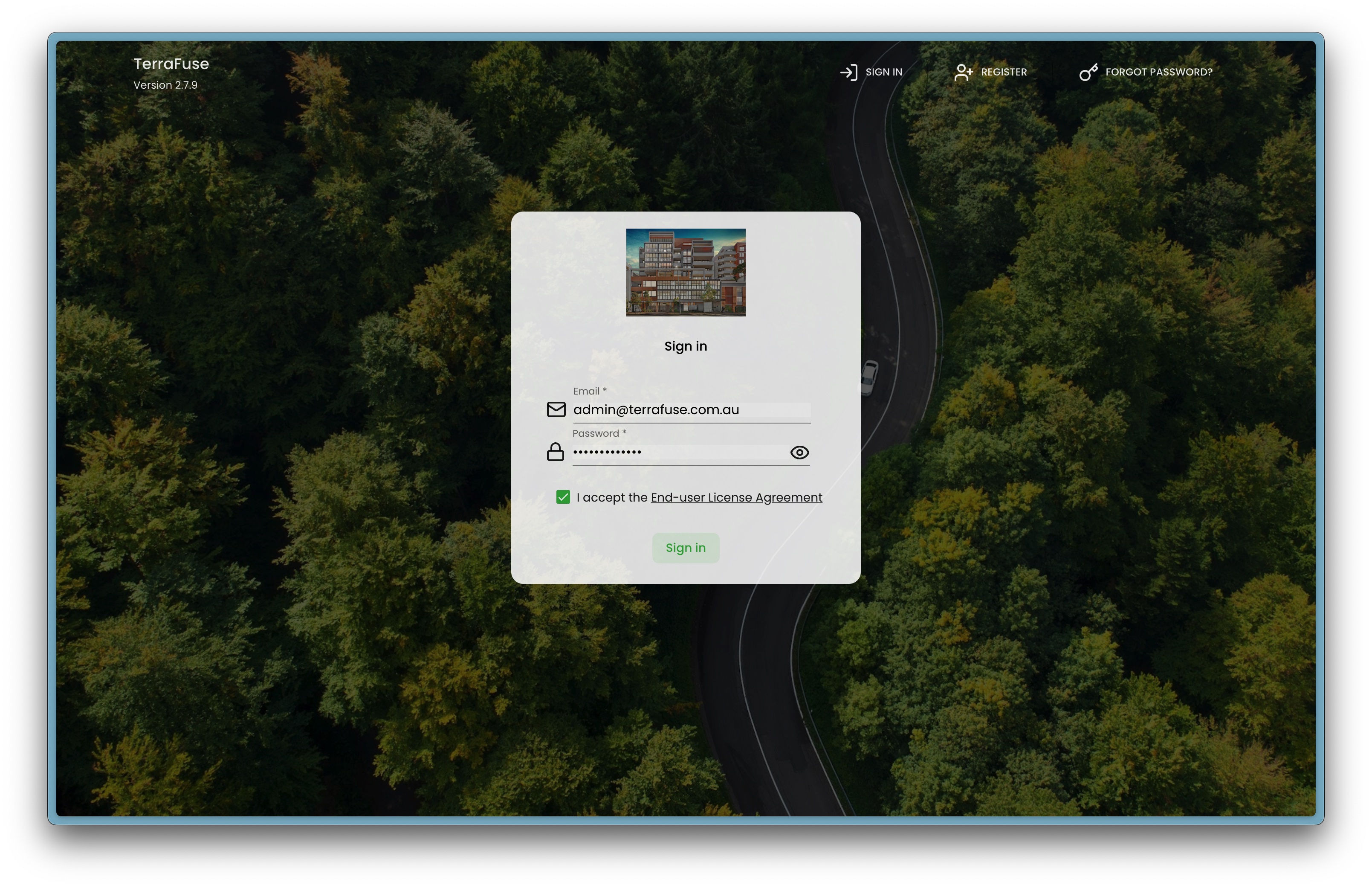
- Enter the site-specific credentials provided by TerraFuse, as shown in Figure 3.1.8.
- Upon logging in, the manager will be granted access to the site-specific dashboard.
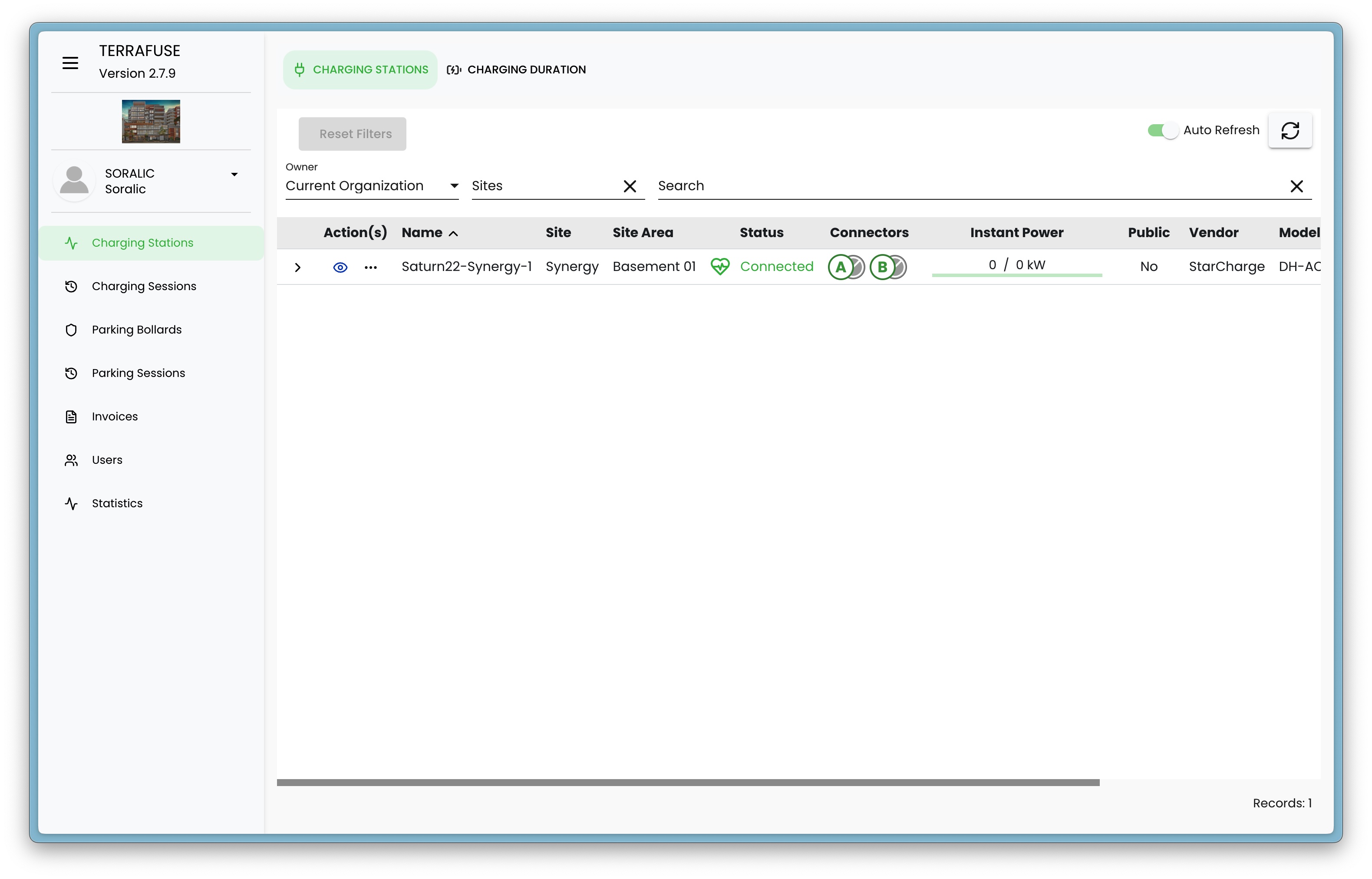
- From this interface shown in Figure 3.1.9, building managers can manage various features including visitor parking allowances, parking session tracking, and tenant-related settings.
This tiered access structure ensures both security and clarity, separating general strata-level controls from individual site operations.