
Appearance
Managing Invoices
The Invoices section lets managers easily track and manage all billing related to EV charging and parking sessions.
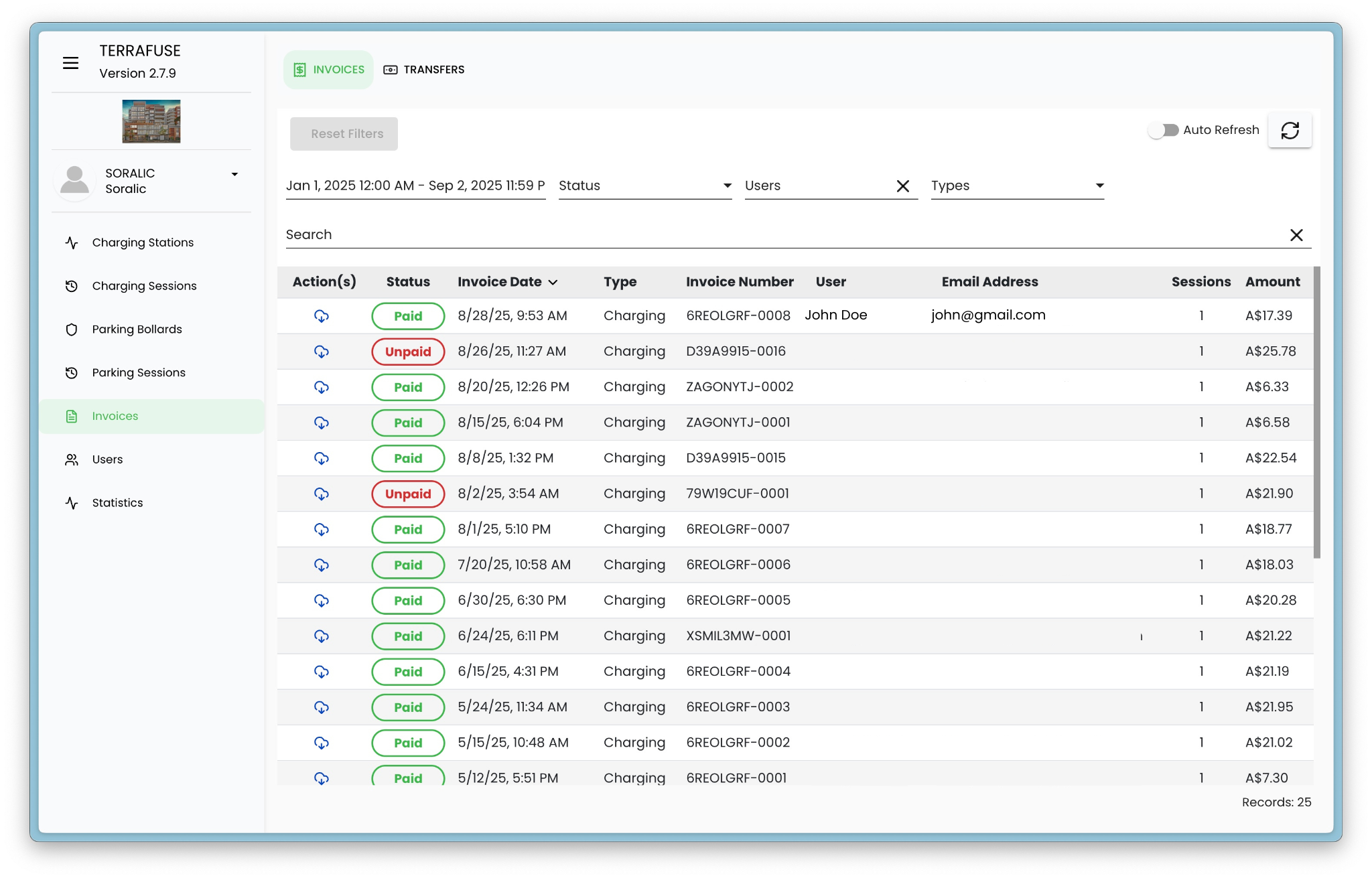
When you open Invoices from the sidebar, you can see a list of all invoices with clear details, as shown in Figure 4.4.1.
What You Can See
Each invoice shows the following information:
- Actions – Option to download the invoice directly.
- Payment Status – Shows whether the invoice is Paid or Unpaid.
- Paid: Payment has been successfully deducted from the user’s card.
- Unpaid: Payment did not go through, usually because the card is expired or has insufficient balance.
- Invoice Date – The date the invoice was created.
- Type of Payment – Indicates whether the invoice is for Charging or Parking.
- Invoice Number – A unique reference number for the invoice.
- User Information – The name of the user linked to the invoice.
- Email Address – The user’s email for contact/reference.
- Sessions – Total number of charging or parking sessions included.
- Amount – The total amount to be paid or already paid.
Filtering and Searching
To make invoice management easier, you can:
- Search – Quickly find an invoice by typing in details (such as user, invoice number, etc.).
- Filter – Narrow down invoices by:
- Date – View invoices created within a specific time range.
- Status – View only Paid or Unpaid invoices.
This makes it simple to check payments, follow up on any unpaid invoices, and keep all records transparent and organized.